 FACEBOOK
 Google
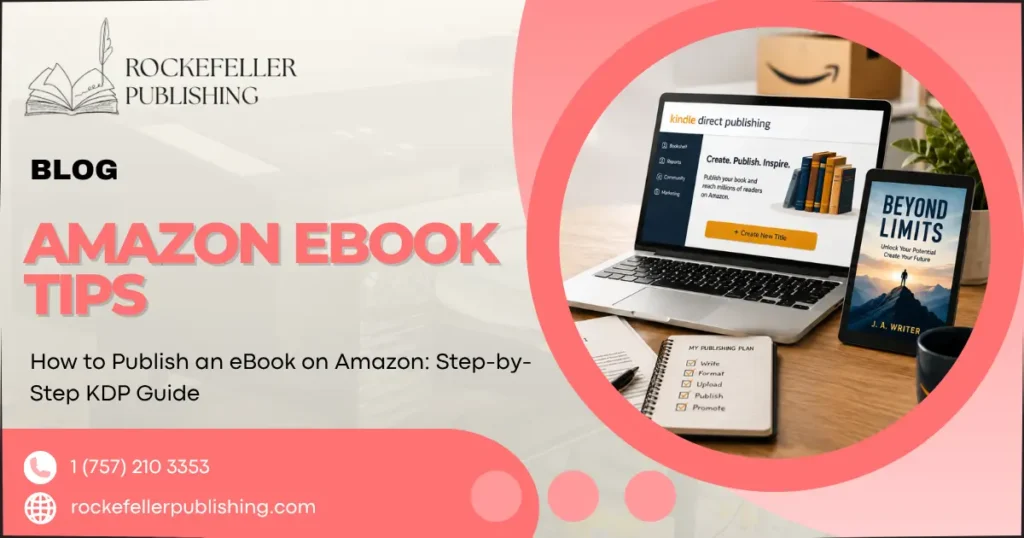
To publish an eBook on Amazon, create a free Kindle Direct Publishing (KDP) account, upload your manuscript and cover, fill in your book details, choose a royalty plan, and hit publish. Amazon typically reviews and lists new titles within 24 to 72 hours.
That’s the process in one sentence. The parts that trip up first-time authors aren’t the account setup. They’re the formatting choices, category selection, and pricing decisions along the way, which is exactly what this guide walks through step by step.
What You Need Before You Start
Before opening a KDP account, have these ready:
- A finished, edited manuscript (Word .docx or EPUB file)
- A cover file sized to Amazon’s specifications (typically a 1.6:1 height-to-width ratio, at least 2,560 x 1,600 pixels)
- A book title, subtitle (optional), and a description you’re ready to publish
- A decision on pricing and royalty structure
Skipping the editing step before upload is the most common reason authors re-upload files multiple times after publishing.
Step 1: Create Your KDP Account
Go to kdp.amazon.com and sign in with an existing Amazon account or create a new one specifically for publishing. Amazon will ask for tax and payment information before your book can go live, since royalties are paid out directly to your linked bank account.
Step 2: Start a New Title and Enter Book Details
From your KDP dashboard, select “Create eBook” and fill in:
- Title and subtitle: keep this consistent with your cover design.
- Series information: If applicable
- Book description: This is your primary sales copy and supports SEO on Amazon’s own search engine, so it’s worth writing carefully rather than rushing
- Contributors: Author name, editor, illustrator, or translator credits
- Language and categories: choose up to three relevant categories that accurately reflect your book’s genre or topic
Step 3: Upload and Format Your Manuscript
This is where most delays happen. KDP accepts:
- EPUB files: The cleanest option, since EPUB is a reflowable format built for e-readers
- Word documents (.docx): KDP converts these automatically, but formatting errors (inconsistent headings, page breaks, embedded images) tend to surface only after conversion
Before uploading, use KDP’s built-in previewer to check how your book displays on different device sizes. A file that looks fine in Word can display broken spacing or misplaced images once converted.
Step 4: Upload Your Cover
Your cover file uploads separately from your manuscript. Amazon’s previewer shows how it will appear as a thumbnail in search results. This matters more than how it looks at full size, since most readers first encounter your book as a small image in a scrollable list. Bold typography and high contrast tend to hold up better at thumbnail size than intricate or busy designs.
Step 5: Set Your Pricing and Royalty Plan
KDP offers two royalty structures:
- 35% royalty: Available at any price point, with fewer restrictions on distribution
- 70% royalty: Available for books priced between $2.99 and $9.99, sold in eligible territories, with delivery costs deducted based on file size
You’ll also decide whether to enroll in KDP Select, which makes your book available through Kindle Unlimited and Kindle Owners’ Lending Library in exchange for 90 days of exclusivity to Amazon. This trade-off is worth thinking through: exclusivity can boost visibility through Kindle Unlimited page reads, but it means you can’t distribute the same title through Apple Books, Kobo, or other retailers during that window.
Step 6: Preview, Review, and Publish
Once everything is uploaded, use KDP’s previewer one more time to check your final file end to end, not just the first few pages. After you submit, Amazon typically reviews new titles within 24 to 72 hours before the listing goes live. If something violates content guidelines or formatting standards, you’ll get a notification explaining what to fix.
Common Mistakes That Delay Amazon eBook Publishing
- Uploading a Word file with inconsistent heading styles, which breaks the automatic table of contents
- Choosing a cover file below Amazon’s minimum resolution, which gets rejected at upload
- Picking overly broad or irrelevant categories, which hurts discoverability rather than helping it
- Publishing before a final proofread pass, since KDP allows edits after publishing but doesn’t undo the first impression of readers who bought early
- Setting price and royalty tier without checking territory-specific rules, which can affect actual payout
What Readers Should Know
Publishing on Amazon is free and technically accessible to anyone, which is exactly why formatting quality, cover design, and metadata have become the real differentiators. A technically clean file with an accurate category and a thumbnail-ready cover consistently outperforms a rushed upload, even when the writing itself is comparable. If you’d rather have the technical side formatting, cover sizing, and file conversion handled for you, professional eBook writing and publishing support covers exactly these steps, and if your manuscript still needs a final pass before upload, dedicated editing and proofreading support can catch what a self-review often misses. For the broader picture beyond Amazon specifically, our guide on how to publish an eBook in 2026 covers the full process across multiple platforms.
Conclusion
Publishing an eBook on Amazon comes down to six manageable steps: account setup, book details, manuscript upload, cover upload, pricing, and final review. The real risk of delay is formatting, cover specifications, and category selection, not the writing itself. Get those technical details right the first time to avoid a frustrating cycle of re-uploads.
Turn your manuscript into a professionally published Amazon eBook. Get your free consultation today.
Frequently Asked Questions
Is it free to publish an eBook on Amazon?
Yes. Creating a KDP account and listing an eBook costs nothing upfront. Amazon deducts delivery costs from royalties on the 70% plan, but there’s no listing fee.
How long does Amazon take to approve a new eBook?
Most titles are reviewed and published within 24 to 72 hours, though this can vary if your book needs additional content or formatting review.
Should I choose the 35% or 70% royalty option?
The 70% option applies to books priced between $2.99 and $9.99 in eligible territories and generally earns more for most self-published nonfiction and fiction titles. The 35% option has fewer pricing restrictions but pays a smaller percentage.
Do I need an ISBN to publish an eBook on Amazon?
No. Amazon assigns a free ASIN to identify your eBook. You only need a purchased ISBN if you plan to distribute through other retailers like Apple Books or Kobo.
What file format works best for KDP uploads?
EPUB files generally convert more reliably than Word documents, since EPUB is already built for reflowable e-reader display. Word files work but are more prone to formatting issues after conversion.